Computer data storage, often called storage or memory, refers to computer components, devices, and recording media that retain digital data used for computing for some interval of time. Computer data storage provides one of the core functions of the modern computer, that of information retention. It is one of the fundamental components of all modern computers, and coupled with a central processing unit (CPU, a processor), implements the basic computer model used since the 1940s. In contemporary usage, memory usually refers to a form of semiconductor storage known asrandom-access memory (RAM) and sometimes other forms of fast but temporary storage. Similarly, storage today more commonly refers to mass storage — optical discs, forms ofmagnetic storage like hard disk drives, and other types slower than RAM, but of a more permanent nature. Historically, memory and storage were respectively called main memory andsecondary storage. The terms internal memory and external memory are also used. Many different forms of storage, based on various natural phenomena, have been invented. So far, no practical universal storage medium exists, and all forms of storage have some drawbacks. Therefore a computer system usually contains several kinds of storage, each with an individual purpose. A digital computer represents data using the binary numeral system. Text, numbers, pictures, audio, and nearly any other form of information can be converted into a string of bits, or binary digits, each of which has a value of 1 or 0. The most common unit of storage is the byte, equal to 8 bits. A piece of information can be handled by any computer whose storage space is large enough to accommodate the binary representation of the piece of information, or simply data. For example, using eight million bits, or about one megabyte, a typical computer could store a short novel. Traditionally the most important part of every computer is the central processing unit (CPU, or simply a processor), because it actually operates on data, performs any calculations, and controls all the other components. Without a significant amount of memory, a computer would merely be able to perform fixed operations and immediately output the result. It would have to be reconfigured to change its behavior. This is acceptable for devices such as desk calculators or simple digital signal processors. Von Neumann machines differ in that they have a memory in which they store their operating instructions and data. Such computers are more versatile in that they do not need to have their hardware reconfigured for each new program, but can simply bereprogrammed with new in-memory instructions; they also tend to be simpler to design, in that a relatively simple processor may keep statebetween successive computations to build up complex procedural results. Most modern computers are von Neumann machines. In practice, almost all computers use a variety of memory types, organized in a storage hierarchy around the CPU, as a trade-off between performance and cost. Generally, the lower a storage is in the hierarchy, the lesser its bandwidth and the greater its access latency is from the CPU. This traditional division of storage to primary, secondary, tertiary and off-line storage is also guided by cost per bit. Primary storage (or main memory or internal memory), often referred to simply as memory, is the only one directly accessible to the CPU. The CPU continuously reads instructions stored there and executes them as required. Any data actively operated on is also stored there in uniform manner. Historically, early computers used delay lines, Williams tubes, or rotatingmagnetic drums as primary storage. By 1954, those unreliable methods were mostly replaced by magnetic core memory, which was still rather cumbersome. Undoubtedly, a revolution was started with the invention of atransistor, that soon enabled then-unbelievable miniaturization of electronic memory via solid-state silicon chip technology. This led to a modern random-access memory (RAM). It is small-sized, light, but quite expensive at the same time. (The particular types of RAM used for primary storage are also volatile, i.e. they lose the information when not powered). As shown in the diagram, traditionally there are two more sub-layers of the primary storage, besides main large-capacity RAM: Main memory is directly or indirectly connected to the central processing unit via a memory bus. It is actually two buses (not on the diagram): an address bus and a data bus. The CPU firstly sends a number through an address bus, a number called memory address, that indicates the desired location of data. Then it reads or writes the data itself using the data bus. Additionally, a memory management unit (MMU) is a small device between CPU and RAM recalculating the actual memory address, for example to provide an abstraction of virtual memory or other tasks. As the RAM types used for primary storage are volatile (cleared at start up), a computer containing only such storage would not have a source to read instructions from, in order to start the computer. Hence, non-volatile primary storage containing a small startup program (BIOS) is used to bootstrap the computer, that is, to read a larger program from non-volatile secondary storage to RAM and start to execute it. A non-volatile technology used for this purpose is called ROM, for read-only memory (the terminology may be somewhat confusing as most ROM types are also capable of random access). Many types of "ROM" are not literally read only, as updates are possible; however it is slow and memory must be erased in large portions before it can be re-written. Some embedded systems run programs directly from ROM (or similar), because such programs are rarely changed. Standard computers do not store non-rudimentary programs in ROM, rather use large capacities of secondary storage, which is non-volatile as well, and not as costly. Recently, primary storage and secondary storage in some uses refer to what was historically called, respectively, secondary storage andtertiary storage.[1] Secondary storage (or external memory) differs from primary storage in that it is not directly accessible by the CPU. The computer usually uses its input/output channels to access secondary storage and transfers the desired data using intermediate area in primary storage. Secondary storage does not lose the data when the device is powered down—it is non-volatile. Per unit, it is typically also two orders of magnitude less expensive than primary storage. Consequently, modern computer systems typically have two orders of magnitude more secondary storage than primary storage and data is kept for a longer time there. In modern computers, hard disk drives are usually used as secondary storage. The time taken to access a given byte of information stored on a hard disk is typically a few thousandths of a second, or milliseconds. By contrast, the time taken to access a given byte of information stored in random access memory is measured in billionths of a second, or nanoseconds. This illustrates the very significant access-time difference which distinguishes solid-state memory from rotating magnetic storage devices: hard disks are typically about a million times slower than memory. Rotating optical storage devices, such as CD and DVD drives, have even longer access times. With disk drives, once the disk read/write head reaches the proper placement and the data of interest rotates under it, subsequent data on the track are very fast to access. As a result, in order to hide the initial seek time and rotational latency, data are transferred to and from disks in large contiguous blocks. When data reside on disk, block access to hide latency offers a ray of hope in designing efficient external memory algorithms. Sequential or block access on disks is orders of magnitude faster than random access, and many sophisticated paradigms have been developed to design efficient algorithms based upon sequential and block access . Another way to reduce the I/O bottleneck is to use multiple disks in parallel in order to increase the bandwidth between primary and secondary memory.[2] Some other examples of secondary storage technologies are: flash memory (e.g. USB flash drives or keys), floppy disks, magnetic tape, paper tape, punched cards, standalone RAM disks, and Iomega Zip drives. The secondary storage is often formatted according to a file system format, which provides the abstraction necessary to organize data into filesand directories, providing also additional information (called metadata) describing the owner of a certain file, the access time, the access permissions, and other information. Most computer operating systems use the concept of virtual memory, allowing utilization of more primary storage capacity than is physically available in the system. As the primary memory fills up, the system moves the least-used chunks (pages) to secondary storage devices (to aswap file or page file), retrieving them later when they are needed. As more of these retrievals from slower secondary storage are necessary, the more the overall system performance is degraded. Tertiary storage or tertiary memory,[3] provides a third level of storage. Typically it involves a robotic mechanism which will mount (insert) and dismount removable mass storage media into a storage device according to the system's demands; this data is often copied to secondary storage before use. It is primarily used for archival of rarely accessed information since it is much slower than secondary storage (e.g. 5–60 seconds vs. 1-10 milliseconds). This is primarily useful for extraordinarily large data stores, accessed without human operators. Typical examples include tape libraries and optical jukeboxes. When a computer needs to read information from the tertiary storage, it will first consult a catalogdatabase to determine which tape or disc contains the information. Next, the computer will instruct arobotic arm to fetch the medium and place it in a drive. When the computer has finished reading the information, the robotic arm will return the medium to its place in the library. Off-line storage is a computer data storage on a medium or a device that is not under the control of a processing unit.[4] The medium is recorded, usually in a secondary or tertiary storage device, and then physically removed or disconnected. It must be inserted or connected by a human operator before a computer can access it again. Unlike tertiary storage, it cannot be accessed without human interaction. Off-line storage is used to transfer information, since the detached medium can be easily physically transported. Additionally, in case a disaster, for example a fire, destroys the original data, a medium in a remote location will probably be unaffected, enabling disaster recovery. Off-line storage increases general information security, since it is physically inaccessible from a computer, and data confidentiality or integrity cannot be affected by computer-based attack techniques. Also, if the information stored for archival purposes is accessed seldom or never, off-line storage is less expensive than tertiary storage. In modern personal computers, most secondary and tertiary storage media are also used for off-line storage. Optical discs and flash memory devices are most popular, and to much lesser extent removable hard disk drives. In enterprise uses, magnetic tape is predominant. Older examples are floppy disks, Zip disks, or punched cards. Storage technologies at all levels of the storage hierarchy can be differentiated by evaluating certain core characteristics as well as measuring characteristics specific to a particular implementation. These core characteristics are volatility, mutability, accessibility, and addressibility. For any particular implementation of any storage technology, the characteristics worth measuring are capacity and performance. The impact of a storage device on the environment. As of 2008, the most commonly used data storage technologies are semiconductor, magnetic, and optical, while paper still sees some limited usage. Some other fundamental storage technologies have also been used in the past or are proposed for development. Semiconductor memory uses semiconductor-based integrated circuits to store information. A semiconductor memory chip may contain millions of tiny transistors or capacitors. Both volatile and non-volatile forms of semiconductor memory exist. In modern computers, primary storage almost exclusively consists of dynamic volatile semiconductor memory or dynamic random access memory. Since the turn of the century, a type of non-volatile semiconductor memory known as flash memory has steadily gained share as off-line storage for home computers. Non-volatile semiconductor memory is also used for secondary storage in various advanced electronic devices and specialized computers. Magnetic storage uses different patterns of magnetization on a magnetically coated surface to store information. Magnetic storage is non-volatile. The information is accessed using one or more read/write heads which may contain one or more recording transducers. A read/write head only covers a part of the surface so that the head or medium or both must be moved relative to another in order to access data. In modern computers, magnetic storage will take these forms: In early computers, magnetic storage was also used for primary storage in a form of magnetic drum, or core memory, core rope memory, thin-film memory, twistor memory or bubble memory. Also unlike today, magnetic tape was often used for secondary storage. Optical storage, the typical Optical disc, stores information in deformities on the surface of a circular disc and reads this information by illuminating the surface with a laser diode and observing the reflection. Optical disc storage is non-volatile. The deformities may be permanent (read only media ), formed once (write once media) or reversible (recordable or read/write media). The following forms are currently in common use:[12] Magneto-optical disc storage is optical disc storage where the magnetic state on a ferromagnetic surface stores information. The information is read optically and written by combining magnetic and optical methods. Magneto-optical disc storage is non-volatile, sequential access, slow write, fast read storage used for tertiary and off-line storage. 3D optical data storage has also been proposed. Paper data storage, typically in the form of paper tape or punched cards, has long been used to store information for automatic processing, particularly before general-purpose computers existed. Information was recorded by punching holes into the paper or cardboard medium and was read mechanically (or later optically) to determine whether a particular location on the medium was solid or contained a hole. A few technologies allow people to make marks on paper that are easily read by machine—these are widely used for tabulating votes and grading standardized tests. Barcodes made it possible for any object that was to be sold or transported to have some computer readable information securely attached to it. A secondary or tertiary storage may connect to a computer utilizing computer networks. This concept does not pertain to the primary storage, which is shared between multiple processors in a much lesser degree. Large quantities of individual magnetic tapes, and optical or magneto-optical discs may be stored in robotic tertiary storage devices. In tape storage field they are known as tape libraries, and in optical storage field optical jukeboxes, or optical disk libraries per analogy. Smallest forms of either technology containing just one drive device are referred to as autoloaders or autochangers. Robotic-access storage devices may have a number of slots, each holding individual media, and usually one or more picking robots that traverse the slots and load media to built-in drives. The arrangement of the slots and picking devices affects performance. Important characteristics of such storage are possible expansion options: adding slots, modules, drives, robots. Tape libraries may have from 10 to more than 100,000 slots, and provide terabytes or petabytes of near-line information. Optical jukeboxes are somewhat smaller solutions, up to 1,000 slots. Robotic storage is used for backups, and for high-capacity archives in imaging, medical, and video industries. Hierarchical storage managementis a most known archiving strategy of automatically migrating long-unused files from fast hard disk storage to libraries or jukeboxes. If the files are needed, they are retrieved back to disk.
The contemporary distinctions are helpful, because they are also fundamental to the architecture of computers in general. The distinctions also reflect an important and significant technical difference between memory and mass storage devices, which has been blurred by the historical usage of the term storage. Nevertheless, this article uses the traditional nomenclature.Contents
[hide][edit]Purpose of storage
[edit]Hierarchy of storage
[edit]Primary storage
[edit]Secondary storage
[edit]Tertiary storage
[edit]Off-line storage
[edit]Characteristics of storage
[edit]Volatility
[edit]Differentiation
[edit]Mutability
[edit]Accessibility
[edit]Addressability
[edit]Capacity
[edit]Performance
[edit]Environmental Impact
[edit]Fundamental storage technologies
[edit]Semiconductor
[edit]Magnetic
[show] [edit]Optical
[show] [edit]Paper
[show] [edit]Uncommon
[edit]Related technologies
[edit]Network connectivity
[edit]Robotic storage
[edit]See also
[edit]Primary storage topics
[edit]Secondary, tertiary and off-line storage topics
[edit]Data storage conferences
Wednesday, May 5, 2010
Computer data storage


Wednesday, April 28, 2010
Antivirus Install
If you don't know what your operating system is perform the following steps:
1. Click the Start button and select Run.

2. Type winver into the run box shown below then click the OK button.
3. If you get a window that looks like the one below then you have Windows XP. Click on the link to go to the instruction page.

4. If you get a window that looks like the one below then you have Windows 2000. Click on the link to go to the instruction page.


5. If you get a window that looks like the one below then you have Windows Vista. Click on the link to go to the instruction page.

How to install Office 2007
Step 1: Insert the Microsoft Office 2007 Enterprise CD. If the Setup Wizard does not automatically begin, then click Start > Run > D:\setup.exe
Step 2: Enter the Product Key from the back of the CD jacket. Note: This is a unique code. Please keep in a safe place!
Click Continue.

Step 3: Check the box "I accept the terms of this agreement" and click the Continue button.

Step 4: Choose an installation option, Upgrade (removes Office 2003) or Customize (keeps Office 2003 installed and adds Office 2007, allowing you to use them both).
Note: Outlook 2003 will be uninstalled in either option. Outlook will be updated and your user settings and mail will migrate to the new version.
If you click Upgrade, go on to Step 5.
If you click Customize, go on to Step 4a.

Step 4a: Click the radio button for "Keep all previous versions."

Click the Installation Options tab, left-click the first drop down box and click Run all from My Computer
Click Install Now.

Step 5: Installation will begin. It may take 15-30 minutes to finish.

Step 6: Click Close to complete the installation.

Step 7: The first time you launch any Office program, you will be prompted to activate the software. As long as you have an active Internet connection, choose the default option and click Next.

Step 8: When the activation finishes, click Close.

Step 9: Click OK to finish.

Cara Memformat Harddisk
Langkah dan Tahap Format Ulang Hard Disk :
1. Back up file penting anda yang ada pada hardisk karena perintah format ini akan menghapus semua file yang ada di hard disk anda. Jika anda punya cd-rw drive atau dvd-rw drive anda bisa membuat cadangan dengan cara membakar file anda ke dalam cd atau dvd, atau kalau tidak punya CD RW, gunakan saja flash disk, itu pun kalau cukup untuk menampung data-data anda.
2. Lalu langkah selanjutnya adalah membuat windows boot disk / rescue disk pada disket floppy 1.4 MB. Disket ini bertujuan untuk booting langsung ke disket tidak melalui harddisk anda. Istilahnya anda akan menggunakan os microsoft dos yang ada pada disket yang anda buat.
3. Kalau tidak punya DOS, coba pinjam atau beli CD yang berisi DOS, saya dulu mendapatkannya di tempat kursus, jadi tidak perlu membuat sistem di disket. Tinggal masukkan saja, pakai untuk bootable.
4. Ganti Setting Bios Ketika komputer dinyalakan anda harus langsung masuk ke tampilan bios untuk setting pilihan urutan boot. Ketika komputer baru dinyalakan, tekan tombol delete sampai bios muncul di layar monitor komputer anda. Ganti urutan booting dengan urutan pertama floppy disk.
5. Format Hard Disk. Setelah urutan boot di bios diganti, anda masukkan disket kemudian restart komputer anda. Nanti komputer anda akan otomatis membooting dari disket tersebut dan pilih boot without cd-rom supaya proses booting bisa lebih cepat. Setelah masuk ke command prompt a:\ , ketik format c: lalu tekan enter. Hal yang sama bisa diterapkan ke partisi harddik yang lain disesuaikan dengan jumlah partisi anda yang ada. Jika anda punya partisi 3 buah maka tambah perintah format d: dan format e:.
6. Kalau anda menggunakan CD bootable, tinggal masukkan saja, otomatis akan muncul DOS begitu di booting.
Kini harddisk anda menjadi seperti baru kembali.
Tuesday, April 20, 2010
Straight & Crossover
T-568A Straight-Through Ethernet Cable

The TIA/EIA 568-A standard which was ratified in 1995, was replaced by the TIA/EIA 568-B standard in 2002 and has been updated since. Both standards define the T-568A and T-568B pin-outs for using Unshielded Twisted Pair cable and RJ-45 connectors for Ethernet connectivity. The standards and pin-out specification appear to be related and interchangeable, but are not the same and should not be used interchangeably.
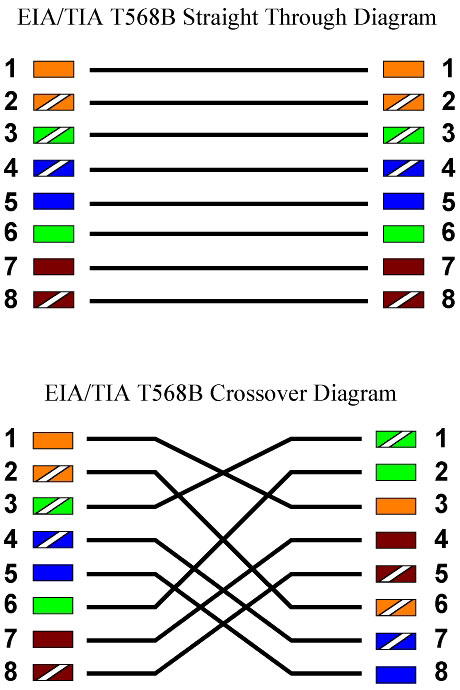
T-568B Straight-Through Ethernet Cable

RJ-45 Crossover Ethernet Cable

A good way of remembering how to wire a Crossover Ethernet cable is to wire one end using the T-568A standard and the other end using the T-568B standard. Another way of remembering the color coding is to simply switch the Green set of wires in place with the Orange set of wires. Specifically, switch the solid Green (G) with the solid Orange, and switch the green/white with the orange/white.
Ethernet Cable Instructions:
Pull the cable off the reel to the desired length and cut. If you are pulling cables through holes, its easier to attach the RJ-45 plugs after the cable is pulled. The total length of wire segments between a PC and a hub or between two PC's cannot exceed 100 Meters (328 feet) for 100BASE-TX and 300 Meters for 10BASE-T.
Start on one end and strip the cable jacket off (about 1") using a stripper or a knife. Be extra careful not to nick the wires, otherwise you will need to start over.
Spread, untwist the pairs, and arrange the wires in the order of the desired cable end. Flatten the end between your thumb and forefinger. Trim the ends of the wires so they are even with one another, leaving only 1/2" in wire length. If it is longer than 1/2" it will be out-of-spec and susceptible to crosstalk. Flatten and insure there are no spaces between wires.
Hold the RJ-45 plug with the clip facing down or away from you. Push the wires firmly into the plug. Inspect each wire is flat even at the front of the plug. Check the order of the wires. Double check again. Check that the jacket is fitted right against the stop of the plug. Carefully hold the wire and firmly crimp the RJ-45 with the crimper.
Check the color orientation, check that the crimped connection is not about to come apart, and check to see if the wires are flat against the front of the plug. If even one of these are incorrect, you will have to start over. Test the Ethernet cable.
Ethernet Cable Tips:
A straight-thru cable has identical ends.
A crossover cable has different ends.
A straight-thru is used as a patch cord in Ethernet connections.
A crossover is used to connect two Ethernet devices without a hub or for connecting two hubs.
A crossover has one end with the Orange set of wires switched with the Green set.
Odd numbered pins are always striped, even numbered pins are always solid colored.
Looking at the RJ-45 with the clip facing away from you, Brown is always on the right, and pin 1 is on the left.
No more than 1/2" of the Ethernet cable should be untwisted otherwise it will be susceptible to crosstalk.
Do not deform, do not bend, do not stretch, do not staple, do not run parallel with power cables, and do not run Ethernet cables near noise inducing components.
Basic Theory:
By looking at a T-568A UTP Ethernet straight-thru cable and an Ethernet crossover cable with a T-568B end, we see that the TX (transmitter) pins are connected to the corresponding RX (receiver) pins, plus to plus and minus to minus. You can also see that both the blue and brown wire pairs on pins 4, 5, 7, and 8 are not used in either standard. What you may not realize is that, these same pins 4, 5, 7, and 8 are not used or required in 100BASE-TX as well. So why bother using these wires, well for one thing its simply easier to make a connection with all the wires grouped together. Otherwise you'll be spending time trying to fit those tiny little wires into each of the corresponding holes in the RJ-45 connector.
Every device connected to the public Internet is assigned a unique number known as an Internet Protocol (IP) address. IP addresses consist of four numbers separated by periods (also called a 'dotted-quad') and look something like 127.0.0.1.
Since these numbers are usually assigned to internet service providers within region-based blocks, an IP address can often be used to identify the region or country from which a computer is connecting to the Internet. An IP address can sometimes be used to show the user's general location.
Because the numbers may be tedious to deal with, an IP address may also be assigned to a Host name, which is sometimes easier to remember. Hostnames may be looked up to find IP addresses, and vice-versa. At one time ISPs issued one IP address to each user. These are called static IP addresses. Because there is a limited number of IP addresses and with increased usage of the internet ISPs now issue IP addresses in a dynamic fashion out of a pool of IP addresses (Using DHCP). These are referred to as dynamic IP addresses. This also limits the ability of the user to host websites, mail servers, ftp servers, etc. In addition to users connecting to the internet, with virtual hosting, a single machine can act like multiple machines (with multiple domain names and IP addresses).


 Pretoria Time

